
How do I connect a Facebook Page to Rypl?
Updated
In Rypl, open Accounts, click Connect Facebook, sign in with Facebook, allow the permissions and select the Pages Rypl should handle. Use the Facebook profile or Business portfolio that manages the Page.
Click Connect Facebook
Open Accounts and click Connect Facebook. Until your first Page is connected, Channels shows the button too.
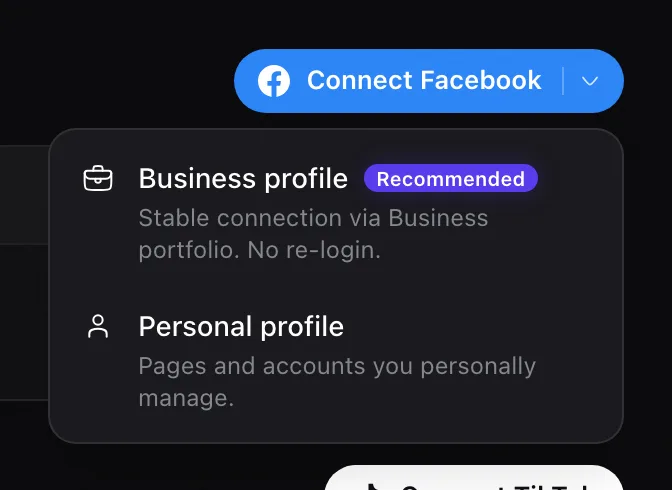
Choose how to connect
- Business profile (recommended): a stable connection through your Business portfolio that doesn't need re-login. Best for agencies and Pages managed in a portfolio.
- Personal profile: Pages and accounts you personally manage.
Allow the permissions
They let Rypl read and reply to comments and messages on your Pages and hide or delete comments.
Select your Pages
Pick the Pages Rypl should handle. An Instagram account linked to a Page comes with it.
Pages you pick during sign-up are switched on for you. Pages you connect later start with AI replies off: open Channels and turn on AI replies. New here? Set up your first agent. If a Page doesn't appear, see Why doesn't my Page or Instagram account appear?
Related
Sign up
Create an account at app.rypl.is, describe your business, check the setup Rypl builds, connect your channels and start the 7-day free trial.
Business or personal profile
No. You can connect with the Facebook profile that manages your Page. A Business portfolio is recommended: the connection is more stable and needs no re-login.