AI moderation is smart. It reads context, detects sentiment, understands intent. But some comments do not need that level of analysis. "FREE BITCOIN CLICK HERE" under your ad does not need sentiment analysis — it needs to disappear.
That is why we built keyword moderation: a pre-filter that sits in front of Rypl's AI. You define a list of words or phrases, choose an action (hide or delete), and every incoming comment is checked against your list before the AI even sees it. Matches are handled before the AI step, so they skip AI processing and come down within seconds. Everything else passes through to your AI agent for full analysis as usual.
How It Works
Setting up the filter is quick:
Add Your Keywords
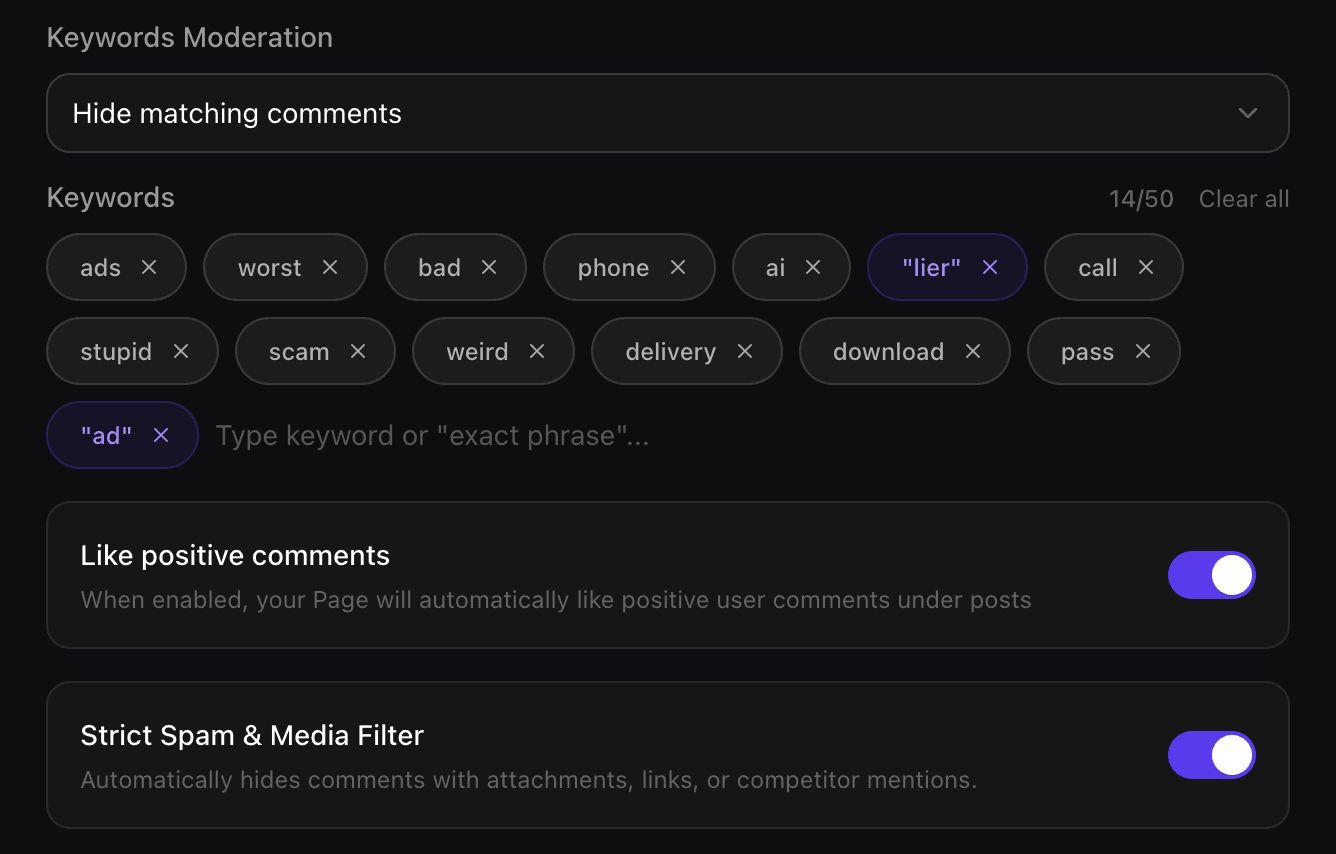
Type a word or phrase and hit Enter. It appears as a tag — just like adding labels in Gmail. You can paste a comma-separated list and Rypl creates tags for each one automatically. Up to 50 keywords per channel.
Choose Your Action
Pick what happens when a comment matches:
- Hide — The comment becomes invisible to everyone except the person who posted it (on Facebook, possibly also their friends). They are not notified. Available on Facebook, Instagram, and TikTok.
- Delete — The comment is removed entirely. Available on Facebook and Instagram.
How a Keyword Matches
- Plain word —
scammatches any word that starts with it: "scam", "scammer", "SCAM!!!", but not "inscam". This is the default. - Anywhere —
*scam*matches the text anywhere, even inside another word. Useful for catching variations. - Whole word —
"scam"(in quotes) matches only that word on its own. Useful when you want precision without false positives.
Save your settings and the filter is live.
What to Filter: Practical Examples
The filter is only as good as your keyword list. Here are practical starting points — review your list periodically and remove terms that catch legitimate comments:
Competitor Mentions
If competitors are commenting on your ads with their brand names or promo links, add those terms to your keyword list. Their promotional comments get hidden within seconds of being posted.
Link Spam
Blocking all URLs by adding http as a keyword is aggressive — it will catch legitimate comments that include links, too. A safer approach: add specific spam domains you see repeatedly, or competitor URLs. If link spam is a major problem and your audience rarely shares URLs in comments, then a blanket http filter can work — but monitor your hidden comments for false positives.
Known Spam Phrases
Every niche has its own spam vocabulary. E-commerce ads attract "DM me for wholesale" and "check my bio". Service businesses get "I'll do this cheaper". Add the phrases you see repeatedly and they stop appearing.
Character Patterns
Add @ to catch comments that tag other accounts — a common pattern in spam and self-promotion. Add $ to flag price-related spam or scam offers. These single-character filters cast a wide net, so pair them with the "hide" action (not delete) and review the results for a few days before committing.
Profanity and Slurs
Explicit slurs and obvious profanity are good keyword candidates — they do not need context to identify. Add the terms your audience never uses legitimately, and they get removed before AI spends tokens analyzing them. For nuanced toxicity (sarcasm, passive aggression), let the AI handle it.
How It Works With AI Moderation
The keyword filter runs first. If a comment matches, it is hidden or deleted without going through the AI. Everything else goes to your AI agent for full sentiment analysis, intent detection, and context-aware replies.
One edge case: if a channel's Filter by tone is set to "Hide all" or "Delete all" (every comment moderated regardless), your banned words step aside automatically. Set Filter by tone back to Off, Hide negative or Delete negative and your list reactivates with its settings preserved.
For more on how the AI layer handles what keywords cannot catch, see our guide to Facebook comment moderation.
Visibility in Your Dashboard
Comments hidden by a banned word are labelled Hidden by banned words in your inbox, separately from comments hidden by your rules, by the tone filter or by you, so you can always tell what triggered the moderation.
The inbox filter lets you:
- View only comments hidden by banned words
- View comments hidden by your rules or by the tone filter
- Show only comments that are not hidden or deleted, to focus on active conversations
This transparency means you can audit your keyword list over time. If you notice false positives — legitimate comments caught by a keyword — adjust your list. If you see a new spam pattern slipping through, add the relevant term.
Platform Availability
| Action | TikTok | ||
|---|---|---|---|
| Hide by keyword | Yes | Yes | Yes |
| Delete by keyword | Yes | Yes | No |
The delete limitation on TikTok is a platform API restriction — TikTok only allows deletion of your brand's own replies, not user comments. Hiding works on all three platforms and is the recommended default.
Getting Started
Keyword moderation is available on all Rypl plans — Simple, Pro, and Ultra. No upgrade required.
Head to your Channels settings, select any connected page or advertiser account, and open the Moderation tab. Your keyword list is ready to configure.
If you are not using Rypl yet, start your free 7-day trial and set up both keyword and AI moderation from day one. Start with the handful of spam phrases you already see every day.
For background on when to use rules vs. AI for comment moderation, see AI vs Rule-Based Comment Automation.